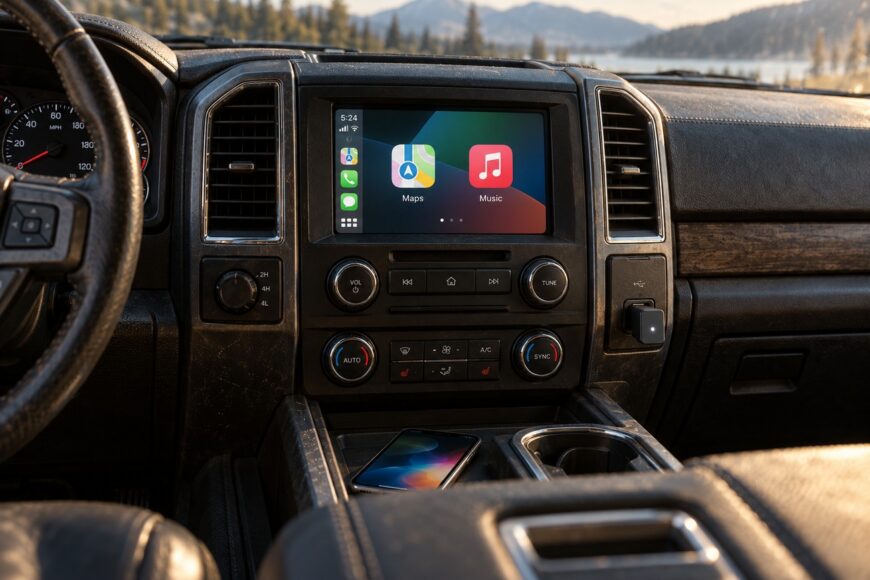
Wireless CarPlay can make an older car easier to use: your phone stays in your pocket while maps, music, and calls appear on the dashboard screen. The purchase decision hinges on what that screen can already do. A standard wireless CarPlay USB adapter normally requires a working wired CarPlay system; it cannot turn an ordinary Bluetooth stereo into a CarPlay display.
Cable-free use also changes the trade-offs. Pairing can fail, the phone uses more power without receiving a charge from the adapter, and wireless charging may add heat. Occasional delays or dropouts matter most during calls, voice commands, and quick stops when you expect the system to reconnect without attention.
Start with compatibility: what kind of upgrade do you need?
Check the existing system before shopping. Connect an iPhone to the car’s multimedia USB port with a known-good cable and see whether CarPlay opens on the built-in screen. If it does, a wireless USB adapter may be an option. If the car only plays Bluetooth audio or shows phone contacts, that does not establish CarPlay support.
A standard wireless CarPlay USB adapter normally requires a working wired CarPlay system. It connects through the car’s USB multimedia/data port and presents itself to the head unit as a wired CarPlay device while linking to the phone tirelessly. A charge-only USB socket cannot provide the CarPlay data it needs, even if the adapter lights up.
A vehicle without wired CarPlay generally needs a head-unit replacement or a dedicated CarPlay retrofit. Before choosing either, check the dashboard opening, existing screen, and controls, along with whether a suitable integration option exists for the vehicle. A replacement that fits the opening can still be a poor match if essential vehicle functions depend on the original unit.
Bluetooth presence alone does not prove CarPlay compatibility. Nor does a USB socket: some cars have several ports with different jobs. Confirm the actual wired CarPlay connection first, then check that the adapter’s stated compatibility covers the head unit and that its plug can reach the working data port.
Choose the right path for your older car
The least expensive-looking device is useful only if it matches the system already in the car. Adapter performance can also vary between vehicles.
| Option | Starting requirement | Installation effort | Phone charging | Reliability expectation | Best use case |
|---|---|---|---|---|---|
| Wireless USB adapter | Working wired CarPlay and a multimedia/data USB port | Plug in, pair, and test | Adapter generally does not charge the phone | May add startup delay, lag, or occasional reconnects | Shorter trips when avoiding a cable matters most |
| Keep wired CarPlay | Working wired CarPlay | Use a sound cable and data port | Phone normally charges through the connection | Practical choice for long trips, calls, minimal delay, and stable operation | Regular navigation and dependable calls |
| Head-unit replacement or retrofit | No CarPlay support in the original system | Vehicle-specific fitment and integration work | Depends on the installed system and connection used | Depends on equipment and installation quality | Adding CarPlay where none exists |
Install the adapter without creating new problems
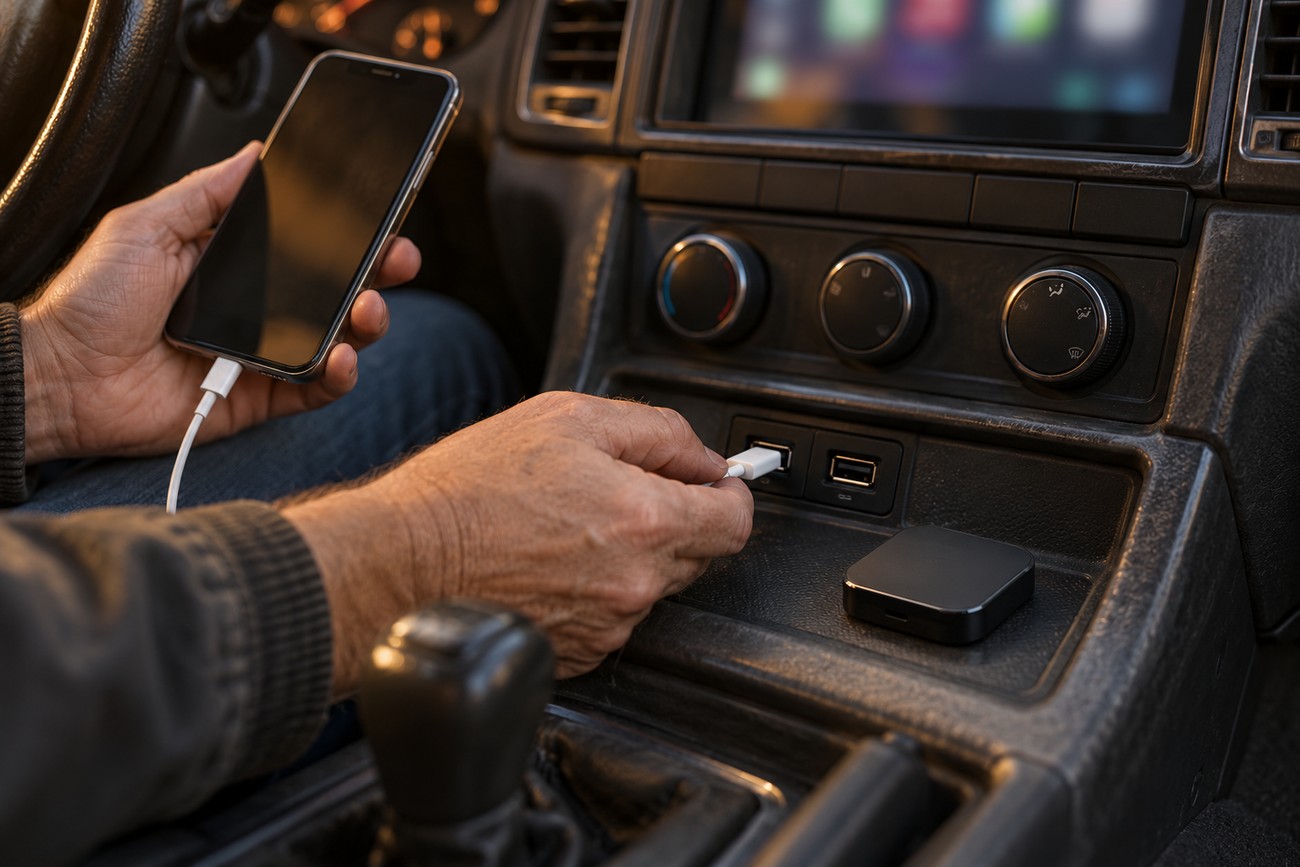
Find the USB port that the head unit uses for multimedia data. A nearby port may supply power only, so a charging symbol or illuminated adapter is insufficient proof. If the owner’s manual does not identify the right socket, test the ports with the phone rather than assuming they serve the same purpose.
Before inserting the adapter, make sure wired CarPlay works with a known-good cable. Check the phone connector for a poor fit and confirm that the connection stays active through a normal drive. An intermittent cable or worn vehicle port can look like an adapter fault once another device is added to the chain.
Inspect the space around the socket next. Trim, an adjacent blanking plate, or an awkwardly positioned connector may stop a short adapter body from seating fully. A connection that works only when you press on the adapter needs a physical fix, not repeated pairing attempts.
Plug the adapter into the proven data port, start the car, and allow the head unit to initialize before pairing. Users often observe startup taking roughly 10–20 seconds after the vehicle powers on; that is an observation, not a guaranteed specification. USB power behavior and the head unit’s startup sequence affect how soon the adapter appears, so judge it across several starts rather than one unusually quick or slow attempt.
Pair the phone using the correct wireless connection
Keep both Bluetooth and Wi-Fi enabled on the phone. Bluetooth handles discovery and connection setup; Wi-Fi carries the wireless CarPlay interface. Pairing through Bluetooth audio alone therefore does not mean the CarPlay link is ready, and turning off Wi-Fi breaks normal wireless CarPlay operation.
With the adapter powered and the car parked, follow its pairing prompt on the phone and approve CarPlay when asked. Allow the connection to finish before opening maps or music. In the phone’s Wi-Fi settings, make sure Auto-Join is active for the CarPlay network so the phone can reconnect on later drives.
If the phone sees the adapter but CarPlay never appears, check whether it has joined the expected Wi-Fi network and whether an older car profile is competing for the connection. Saved pairings can make a first attempt appear successful while the phone keeps returning to a previous link. Avoid treating repeated device restarts as the primary fix; clear stale connections and pair again deliberately.
After a successful connection, switch the car off and test a fresh start. This confirms that the phone reconnects without the setup screen, which matters more in daily use than a single successful pairing while parked. Leave Wi-Fi, Bluetooth, and Auto-Join enabled for that test.
What wireless CarPlay is really like on the road
The immediate benefit is less handling of the phone and cable on ordinary drives. The cost is waiting for the head unit and adapter to start and for the wireless link to form. Users report anything from a minor delay to about 1–2 seconds during track changes, Siri requests, or some navigation actions; those reports are experiences, not a fixed performance rating.
Calls can reveal problems that music playback hides, including echo, delayed audio, or awkward transitions between a phone call and CarPlay. Some users also report dropouts, reconnects after quick engine restarts, or an adapter restarting after a voice command. A device that works well on a long, uninterrupted drive may still be frustrating on a route with frequent short stops.
Wireless CarPlay uses more phone power than wired CarPlay, and the adapter generally does not charge the phone. Adding a wireless charging pad can address the battery drain, but it can also increase phone heat and may make stutter or lag more noticeable. For a long trip with navigation running, a cable can remain the more practical choice even after you have bought an adapter.
Claims of “zero lag” or perfectly stable operation are poor substitutes for testing calls, cold starts, and quick restarts in your own car. Such marketing figures are not a shared industry measurement. The same adapter can behave differently because of head-unit firmware, USB initialization, phone model, saved profiles, or local radio interference; a dropout in the same location may suggest interference without proving it.
Troubleshoot failures before blaming the adapter
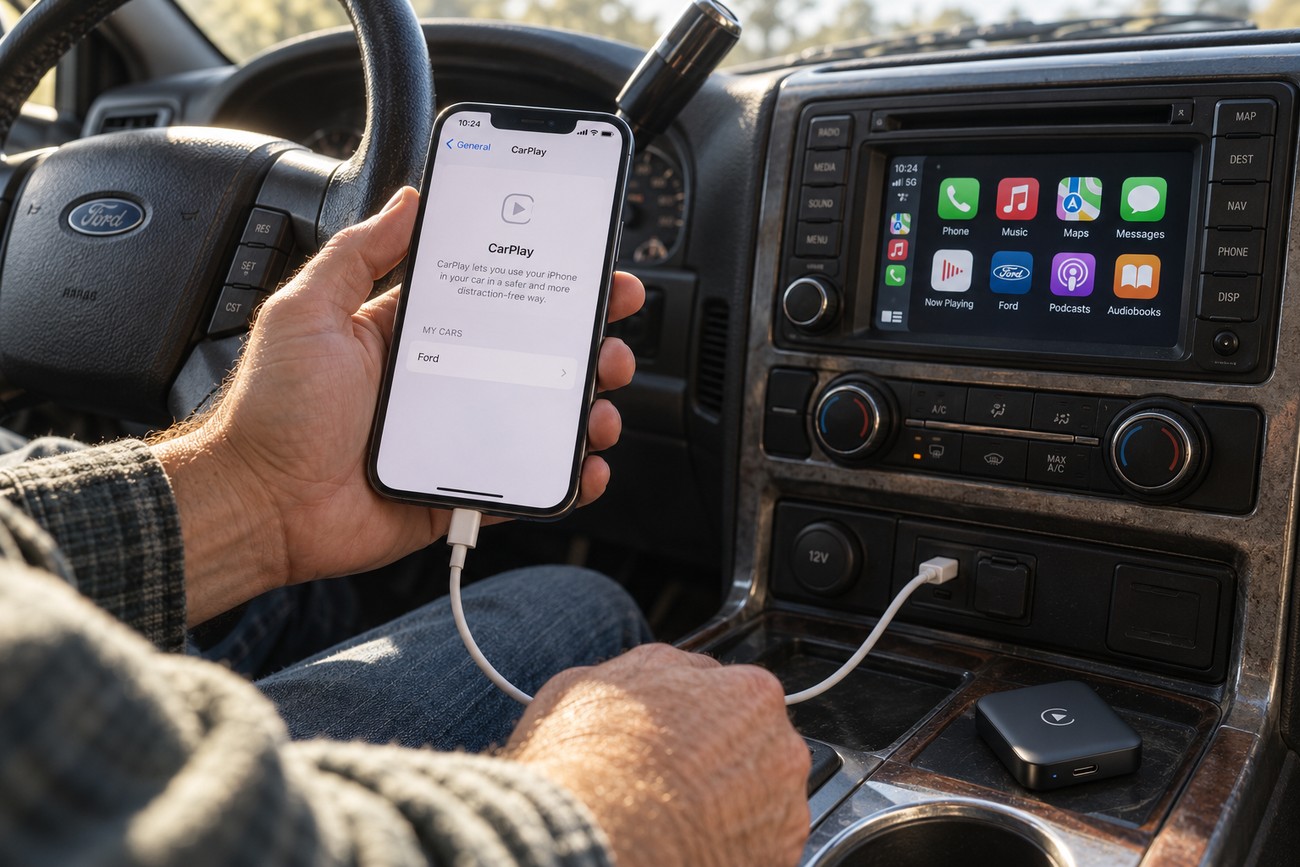
Start with the parts that worked before the adapter was installed. Reconnect the phone using a known-good cable, verify wired CarPlay in the multimedia/data port, and check that neither connector fits loosely. If the wired link also fails, resolve that fault first; replacing the wireless adapter will not repair a bad cable, phone connector, or vehicle USB port.
If wired CarPlay works, confirm that Bluetooth and Wi-Fi are enabled and Auto-Join is active for the CarPlay network. On the iPhone, remove the vehicle from Settings → General → CarPlay, then remove related Bluetooth and Wi-Fi pairings before setting up the connection again. Clearing conflicting saved profiles is often more revealing than repeatedly restarting the phone.
A failure that appears only after a brief engine stop may involve the head unit’s USB startup sequence. Compare a fully cold start with a quick restart before deciding the adapter is defective.
Test the renewed connection in the situations that caused trouble: calls, Siri, a cold start, and a quick engine restart. If it drops out at the same point on a regular route, note the location, but treat radio interference as a possibility rather than a diagnosis. These checks help distinguish a repeatable vehicle or location issue from a generally unreliable connection.
Only after those checks should you consider the adapter’s manual reset procedure or an available firmware update, following its instructions carefully. Either may help with a particular failure, but neither guarantees an end to lag or reconnects. If dependable calls and minimum delay remain priorities, keeping wired CarPlay available is a sensible fallback.