
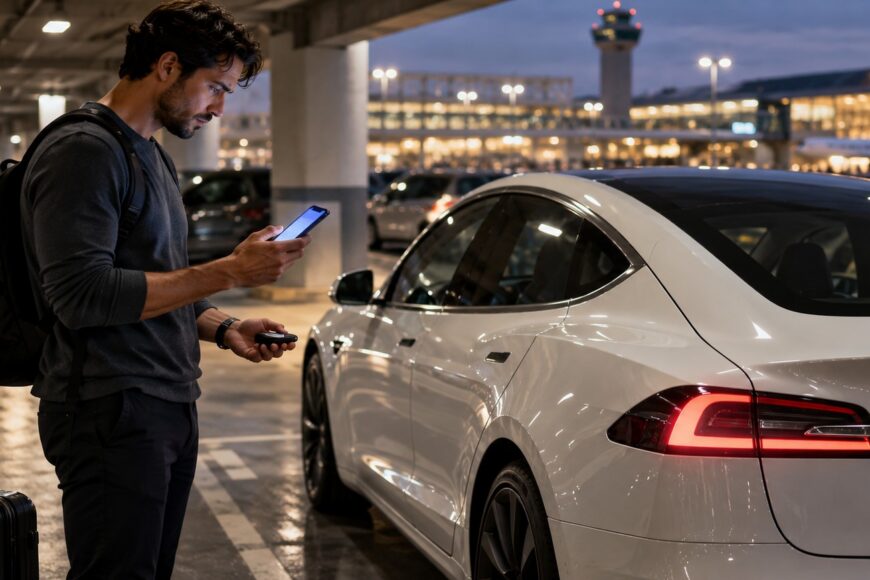
You are standing beside your Tesla in an airport parking lot. The car is close, but the phone that normally unlocks it suddenly does nothing. The problem may be a lost Bluetooth connection, blocked location permission, a power-saving setting, disabled mobile access, or a key-fob fault. A dead battery is only one possibility.
Start by identifying which key you are using. Phone Key depends on Bluetooth, the Tesla app, operating-system permissions, and the vehicle’s Allow Mobile Access setting. A key fob has a separate failure path involving its battery, contacts, buttons, and case fit. The steps below help you separate those causes before you buy a battery or pay for a service that cannot restore access.
- Your Tesla Phone Key Failed at the Airport: Triage First
- Phone Key or Key Fob? Identify the Failure Before Fixing It
- Tesla Key Types and Battery Compatibility
- How to Restore a Tesla Phone Key
- Why a Tesla Key Fob Works Only Sometimes
- Airport Parking Backup Plan: Key Cards, Fobs, and Charging
- Frequently asked questions
- Why does my Tesla Phone Key keep disconnecting when the phone is in my bag?
- Where should I keep a Tesla key card when leaving the car at an airport?
- What should I check if a key fob still works only intermittently after a battery change?
Your Tesla Phone Key Failed at the Airport: Triage First
Keep the phone close to you and check Bluetooth first. Confirm that airplane mode and power-saving mode are disabled, then open the Tesla app and make sure it is signed in and responsive. A phone that can browse the internet may still have a Phone Key problem if Bluetooth access or background activity is restricted.
Check the Tesla app’s location permission. Tesla requires Location = Always Allow for Phone Key setup, and a change to that permission can prevent the car from recognizing the phone as you approach. If the permission is already correct, close and reopen the app, then retry with the phone in your hand.
If you can enter the vehicle through another method, check the car’s screen for Allow Mobile Access and make sure it is enabled. This setting affects mobile access even when the phone itself appears correctly configured. Charging the vehicle will not restore a missing Phone Key connection, so treat access and charging as separate problems.
Use a key card or key fob if one is available. If the physical key works, the immediate issue is probably in the Phone Key path rather than the vehicle’s basic locking system. If the fob also behaves inconsistently, inspect its battery and contacts instead of assuming the phone is responsible.
Phone Key or Key Fob? Identify the Failure Before Fixing It
The word “key” covers three different Tesla systems: Phone Key, key cards, and key fobs. Phone Key uses Bluetooth through the Tesla app, so its first checks involve the phone, the app, location permission, power controls, and vehicle access settings. Replacing a phone battery does not repair this connection.
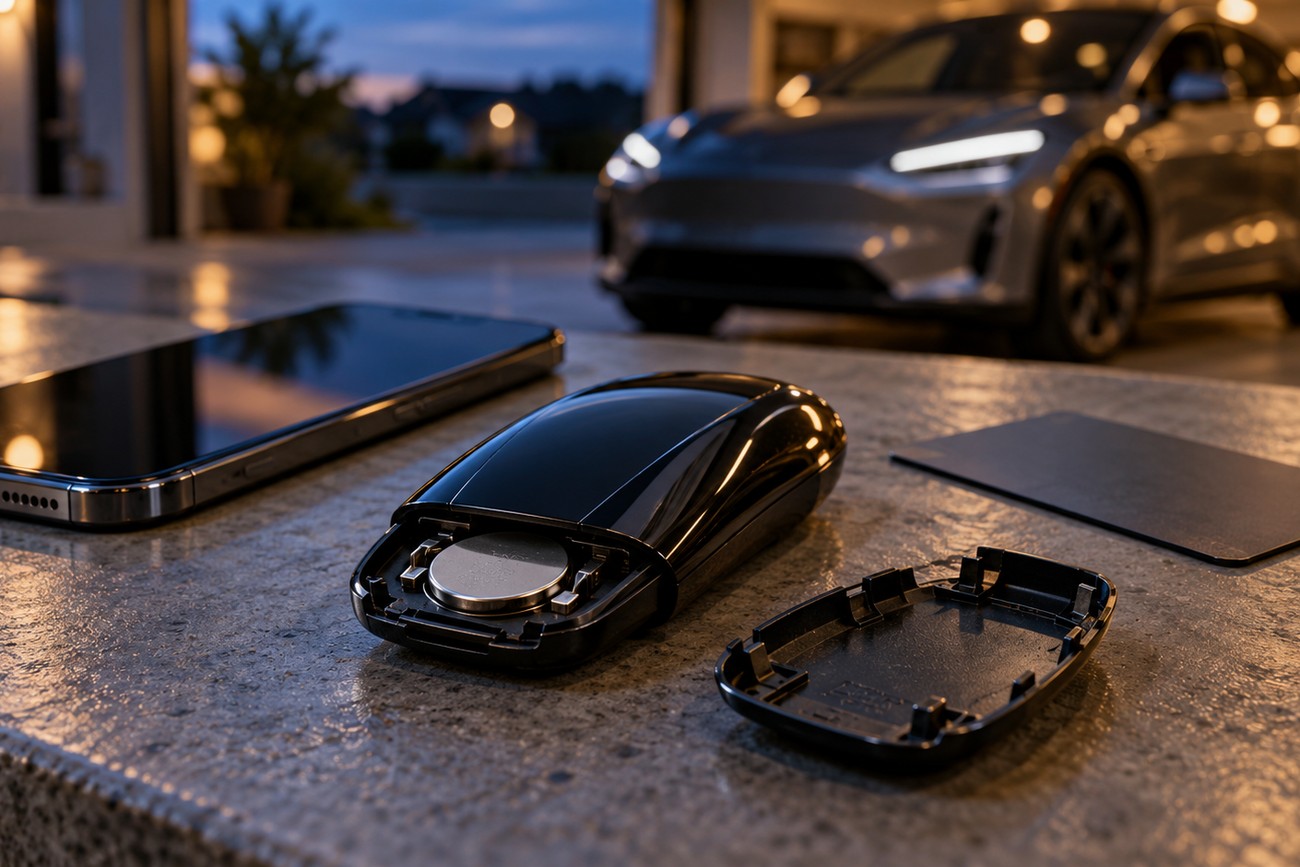
A key fob has its own electronics and physical battery. It may fail because the battery is depleted, the battery is not held firmly by the clips, a button is inconsistent, or the lower cover does not fit tightly. These faults can appear as occasional failures rather than a complete loss of function.
That intermittent pattern matters in an airport parking lot. A fob that unlocks the car once and then fails may have a contact or case-fit problem, while a phone that works after disabling power-saving mode points toward operating-system controls. Repeating the same test with the phone and fob separately gives you more useful information than repeatedly pressing every available button.
Before troubleshooting, identify what you actually used for the failed attempt. If the phone was in a bag, check its placement and Bluetooth-related settings. If you used a fob, move to the correct battery and contact checks. This prevents a phone-key problem from being treated as a battery problem and a fob fault from being treated as an app issue.
Tesla Key Types and Battery Compatibility
Tesla officially supports Phone Key, key cards, and key fobs. Their dependencies and backup value differ, as do the documented battery types for some fobs.
| Key type | How it works | Main dependencies | Backup value | Battery information |
|---|---|---|---|---|
| Phone Key | Uses Bluetooth through the Tesla app | Bluetooth, Tesla app, Location = Always Allow, phone power settings, and Allow Mobile Access | Useful for routine access, but dependent on the phone and its settings | No separate Tesla key-fob battery |
| Key card | Physical card used for Tesla access | Keeping the card with you and using it at the required access point | Simple physical backup for a Phone Key failure | No replaceable key-fob battery |
| Key fob | Dedicated wireless remote | Correct battery, battery contact, buttons, and case fit | Physical alternative to Phone Key; spare fobs can be purchased separately | Model 3: CR2032; Model S: CR2330; CR2354 appears in some Model X listings, so verify compatibility |
Marketplace listings often group several Tesla models together, which can make battery compatibility look universal. Check the exact Tesla model and fob guidance before purchasing, and install the battery with the plus side facing up.
How to Restore a Tesla Phone Key
Begin with the phone’s connection settings. Turn Bluetooth on, disable airplane mode and power-saving mode, and confirm that the Tesla app has the permissions it needs. Location must be set to Always Allow for Phone Key setup; a more restrictive setting can interrupt recognition when the phone is locked or the app is running in the background.
Remove third-party Tesla apps while troubleshooting. Such apps can interact with account access, background behavior, or vehicle communication, making it harder to identify the original fault. Work with the official Tesla app alone, then retry the approach and unlock sequence.
Confirm Allow Mobile Access on the vehicle screen when you can enter with a key card or fob. This check is especially important after a setting change, account change, or a period when mobile access was deliberately disabled. If the car responds to the physical key while the phone remains unrecognized, the vehicle is receiving access from one route, while the phone still needs attention.
Tesla recommends holding the phone in your hand when approaching or leaving the vehicle for better stability. A phone buried in a bag may produce a less consistent approach signal. Test it in your hand first; if that works, placement was part of the problem. If it still fails, revisit permissions and power controls rather than repeatedly walking around the car.
Why a Tesla Key Fob Works Only Sometimes
Start with the exact fob and vehicle guidance before opening the case. Tesla specifies a CR2032 for the Model 3 key fob and a CR2330 for the Model S key fob. CR2354 appears in some Model X product listings, so confirm the required battery for the exact fob instead of relying on a generic marketplace title.
Tesla’s replacement procedure involves opening the lower cover with a small flat tool, removing the battery from its clips, and installing the replacement with the plus side facing up. Close the cover carefully so it seats fully. The meaningful test is the vehicle’s actual lock and unlock response, rather than an indicator light alone.
Battery replacement is incomplete until clip pressure, battery seating, and lower-cover fit have been checked. A fresh cell can still produce intermittent operation if the fob loses contact when it is pressed or moved.
If the fob continues to work only sometimes, reopen it and inspect how the battery sits in the clips. Check for a loose contact, a battery that shifts, buttons that feel inconsistent, or a cover that does not close firmly. These mechanical issues can preserve the original symptom after a correct battery swap.
Retest lock and unlock repeatedly from a sensible distance and compare the result with the fob’s behavior before replacement. A fob that works only when pressed in a particular way points toward contact or button mechanics. If the correct battery and secure fit do not resolve the fault, further diagnosis may be needed rather than another battery purchase.
Airport Parking Backup Plan: Key Cards, Fobs, and Charging
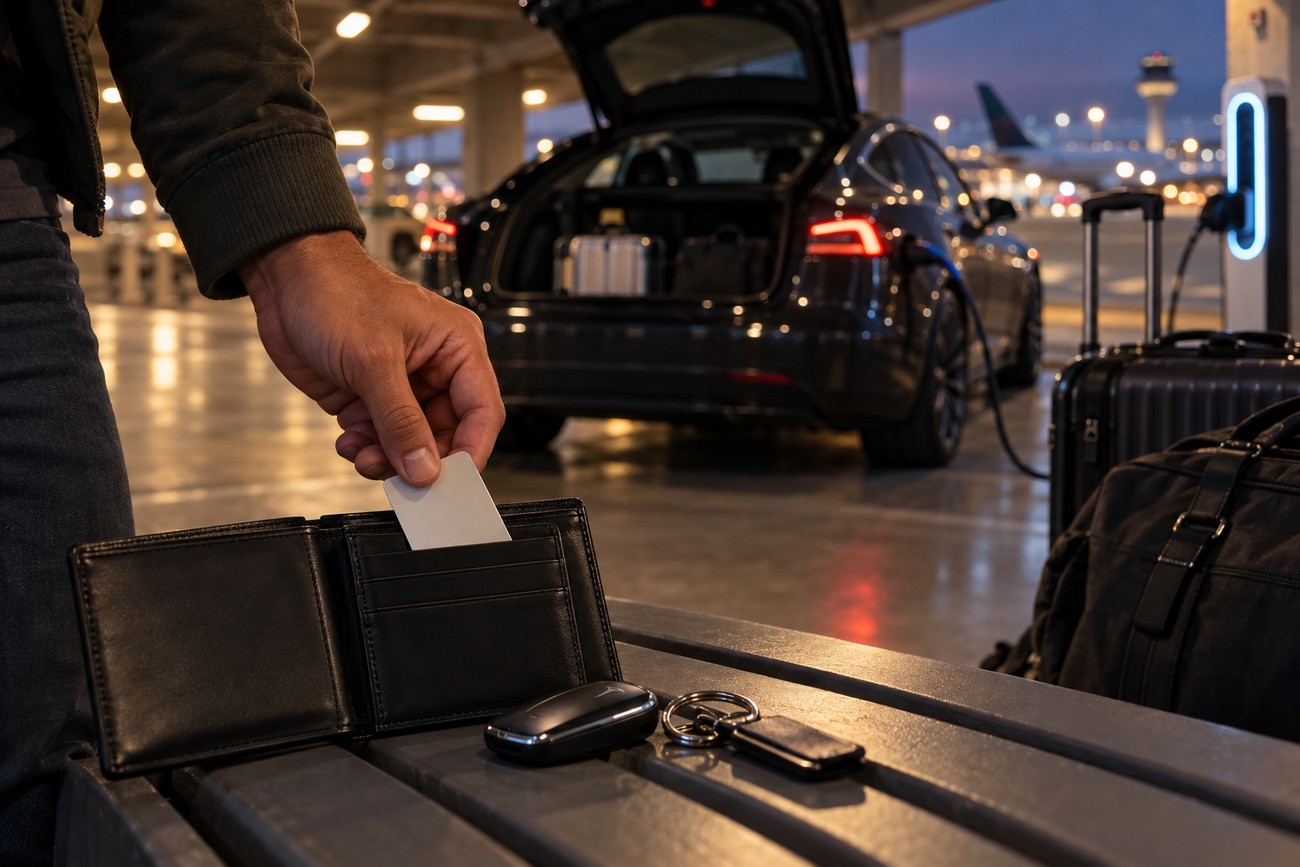
A physical backup should travel with the driver. Tesla supports key cards and key fobs alongside Phone Key, and spare key cards and key fobs can be purchased separately. A backup stored at home has no practical value when the phone or primary fob fails beside a vehicle parked away from home.
Choose one fixed place for the key card, such as a wallet slot or a specific luggage compartment, and use that location every time. Keep it reachable without opening the vehicle or handing the bag over for inspection. Consistent storage reduces the chance of searching through luggage under time pressure.
Airport charging is separate from vehicle access. At JFK, Tesla charging may be available within parking infrastructure as a separate paid parking service. A charger can be physically available while the missing phone, key card, or key fob still prevents you from accessing the car, so charging should never be treated as the access backup.
Before leaving the car at an airport, confirm that the physical backup is with you, the phone has Bluetooth and the required permissions, and the fob battery is appropriate for the model if you carry one. This small routine addresses the failure points that a single Phone Key cannot cover.
Frequently asked questions
These answers address three edge cases that often appear after the initial access checks, with attention to phone placement and post-replacement fob diagnosis.
Why does my Tesla Phone Key keep disconnecting when the phone is in my bag?
A phone buried in a bag can provide a less stable approach signal, especially as you walk toward or away from the vehicle. Tesla recommends holding the phone in your hand during those moments. If the car unlocks consistently in your hand but fails in the bag, placement is a likely contributor.
If the problem continues with the phone exposed, check Bluetooth, Location = Always Allow, airplane mode, and power-saving mode. Also confirm that Allow Mobile Access is enabled and remove third-party Tesla apps during testing. A placement problem is limited to the approach scenario; a permissions or power-control problem usually persists regardless of where you hold the phone.
Where should I keep a Tesla key card when leaving the car at an airport?
Keep the key card in one fixed, easily reachable place, such as a dedicated wallet slot or a specific compartment in your carry-on luggage. Avoid placing it with items that may be checked, left in the vehicle, or difficult to reach at the parking exit.
The location matters because a backup works only if you can find it under stress. Use the same storage rule for every airport trip, and check for the card before walking away from the car.
What should I check if a key fob still works only intermittently after a battery change?
Open the fob again and confirm that the battery is the correct type, is installed with the plus side facing up, and is held firmly by the clips. Inspect the contact points and check whether the lower cover closes tightly. A loose battery or poorly seated cover can interrupt power when the fob is pressed or moved.
Retest the actual vehicle lock and unlock response repeatedly. If the symptom remains intermittent, inspect the buttons and case fit as well as the battery. This pattern can indicate a contact or mechanical problem, so another battery swap may not resolve it.