
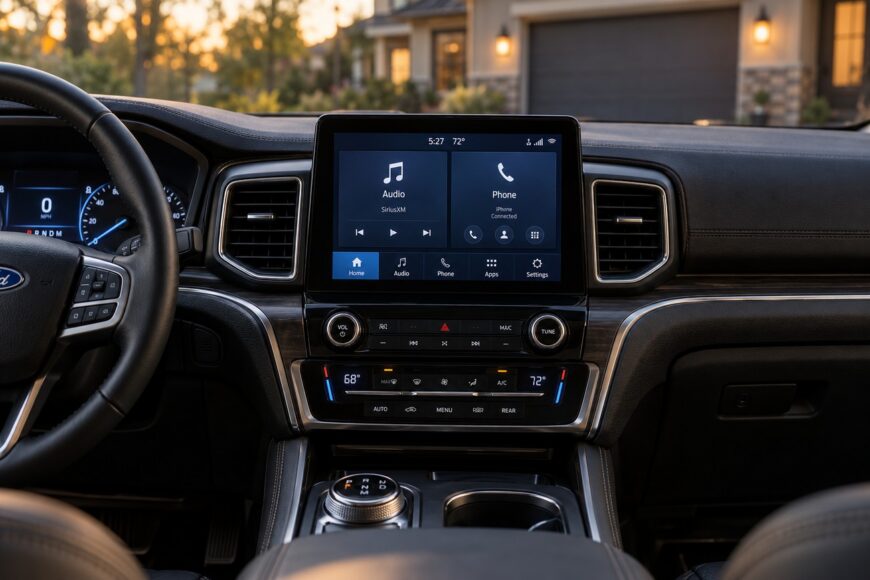
A black or frozen screen in a Ford Explorer is frustrating, especially when it also blocks access to audio, climate controls, navigation, or phone settings. Replacing the screen or the entire infotainment assembly before identifying the fault can turn a recoverable software problem into an unnecessarily expensive repair.
The same symptom can come from a temporary SYNC freeze, a failing APIM, a communication fault, or the display itself. Explorer generations also use different infotainment platforms, so the safest starting point is the least-destructive reset that matches the vehicle, followed by structured diagnosis if the problem returns.
- A Frozen Screen Does Not Always Mean a Dead Display
- Ford Explorer SYNC 2 vs. SYNC 3: Reset Starting Points
- Try the Least-Destructive Soft Reset First
- Factory Reset: When to Use It and What It Deletes
- If the Reset Fails, Diagnose Before Replacing Parts
- Why Battery Disconnection Is Not the Universal Fix
- Frequently asked questions
- What should I save before performing a factory reset?
- Why does the screen keep freezing after a successful reset?
- What can I do if the touchscreen is dead but the physical controls still respond?
A Frozen Screen Does Not Always Mean a Dead Display
A frozen image or completely black screen can be a software hang that clears after a controlled reboot. The display may also be receiving no usable data because of an APIM problem or a communication fault. In other cases, the display or its touch layer has failed while the rest of the infotainment system remains active.
Model year provides an important starting clue. Early 2011–2015 Explorer vehicles are associated with SYNC 2/MyFord Touch, while 2016–2019 vehicles are associated with SYNC 3. These ranges are useful guides, rather than proof that every vehicle has an identical configuration.
A multimedia fault can affect more than navigation or entertainment. Depending on the vehicle and system state, you may lose practical access to audio settings, climate controls, phone functions, or other features linked to the infotainment module. That makes it important to restore operation safely without assuming that the visible screen is the failed part.
Observe what still works before resetting the system. Physical controls, audio output, startup sounds, illumination, and whether the screen changes during ignition can help separate a display problem from a broader SYNC or APIM failure. A black screen alone does not identify the defective component.
Ford Explorer SYNC 2 vs. SYNC 3: Reset Starting Points
Use the platform and the vehicle’s control layout to choose a starting point. A procedure that works on one SYNC generation should not be treated as universal for every Explorer configuration.
| Platform | Associated Explorer model years | First reset starting point | Diagnostic caution |
|---|---|---|---|
| SYNC 2/MyFord Touch | Early 2011–2015 vehicles | Use the applicable soft-reset procedure for the installed system, if supported. | Confirm the exact control layout and investigate software, APIM, and communication faults if the symptom persists. |
| SYNC 3 | 2016–2019 vehicles | Use the applicable soft reset first; use a menu-based factory reset only when data loss is acceptable. | Do not assume a black screen means the display alone has failed or that the same reset applies to every configuration. |
Try the Least-Destructive Soft Reset First
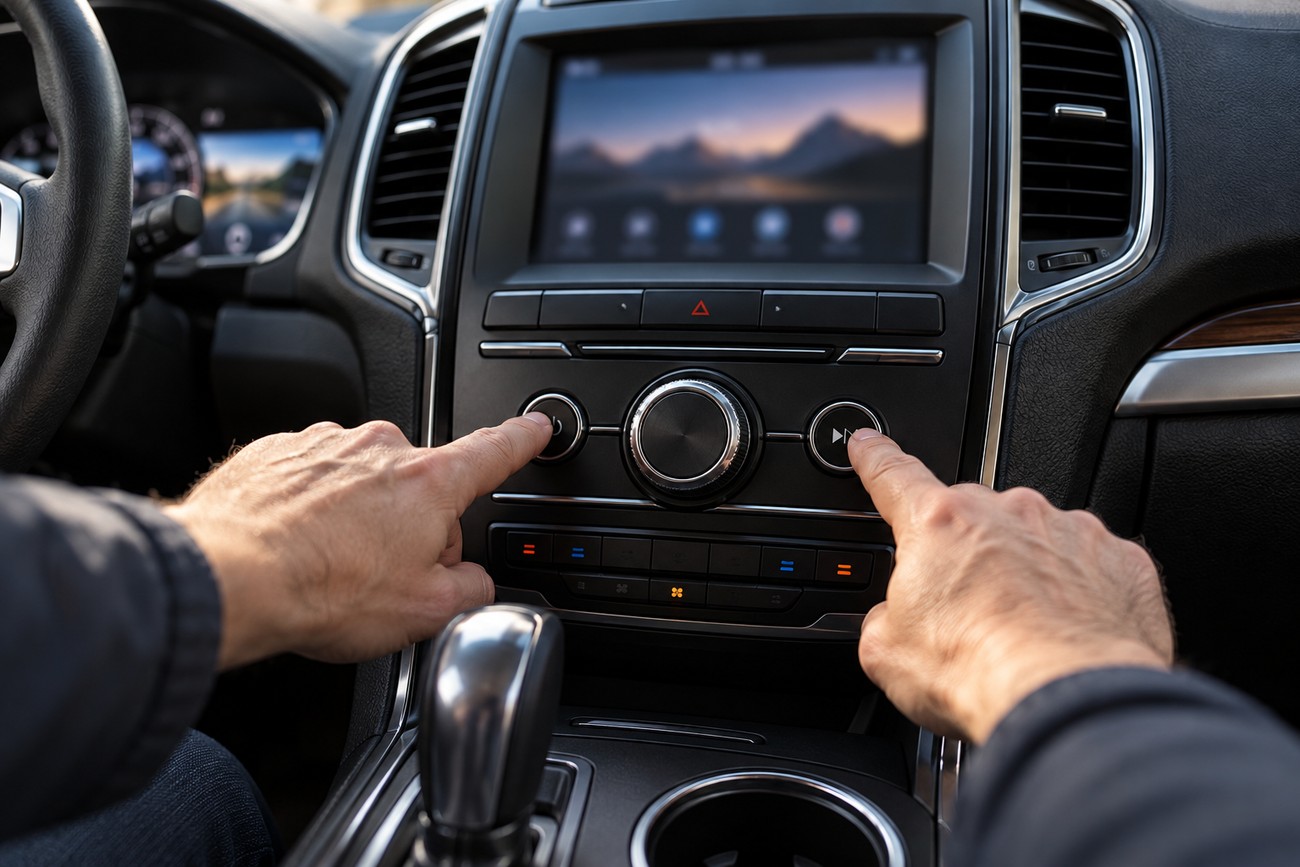
For SYNC systems that support it, the soft reset uses the Power and Seek/Right controls in a quick combined sequence for about 10 seconds. The exact control arrangement can vary, so confirm that the buttons match the installed SYNC system before proceeding. This is a reboot, not a factory reset, and it is intended to clear a temporary lockup without deleting user data.
Keep the vehicle safely stationary and use a stable power state, such as the running engine or an appropriate accessory mode. Avoid starting the sequence while the vehicle is moving or while the ignition is changing states. A power interruption during a reset can make the result harder to interpret.
The screen may go blank, blink, or take several minutes to return. Clicking from air-distribution doors, actuator movement, or motor sounds can occur while the system initializes. These noises do not automatically indicate that a new mechanical or electrical failure has appeared.
If the system returns and then freezes again, record the pattern rather than repeating the reset indefinitely. Note whether the failure occurs at startup, after connecting a phone, during climate-control changes, or after the vehicle warms up. Recurring symptoms point toward a software, APIM, communication, or power-related issue that requires diagnosis.
Factory Reset: When to Use It and What It Deletes
A soft reset restarts the system; a factory reset returns settings to factory defaults. The second operation is more disruptive because it deletes personal data and user preferences. Use it only when you accept the loss of saved settings or have recorded the information you need.
For electric Explorer and Capri systems, Ford’s official approach uses the reset or factory-reset controls in the screen menu rather than indiscriminate power removal. Menu wording can vary with the software version, so follow the on-screen prompts for the installed vehicle. This guidance should not be assumed to describe every gasoline-powered Explorer or every older SYNC system.
A factory reset can remove saved phone pairings, audio settings, and other user preferences. It may also require you to configure the system again before normal daily use. If the display is unstable, save relevant information before beginning, because a reset will not preserve it for later recovery.
Factory reset is reasonable when the system is responsive enough to complete the menu procedure and the problem appears to be configuration-related. It is less useful as a substitute for diagnosis when the screen remains permanently black, the system repeatedly reboots, or communication faults are present.
If the Reset Fails, Diagnose Before Replacing Parts
Start by confirming the symptom. Check whether the screen is completely unlit, whether the backlight is present, whether physical controls respond, and whether audio or climate functions still operate. This distinction helps determine whether the likely fault is confined to the display or involves the APIM and wider infotainment system.
Next, check the software status and available updates for the applicable platform. A reset may temporarily clear a software hang while leaving the underlying software problem unchanged. If the fault returns, the timing and recurrence matter more than the fact that the first reboot worked.
Verify APIM communication, software status, and fault data before condemning the touchscreen. A reset that changes the symptoms without restoring stable operation is useful diagnostic information, not proof that the display must be replaced.
Professional diagnosis should then examine APIM condition, communication, and fault data before replacing the display or the complete infotainment module. A scan that shows communication loss, module errors, or inconsistent responses can direct testing toward wiring, connections, software, or the APIM instead of the screen.
Some cases involve internal contacts or soldering issues in the module or display, but that possibility is case-specific. Proper disassembly and inspection are required before treating an internal connection as the cause. A dealer recommendation to replace the whole assembly may be appropriate in some cases, yet an unsuccessful reset alone does not prove that every component in the assembly has failed.
Why Battery Disconnection Is Not the Universal Fix

Some Russian-language owner forums recommend disconnecting the battery for about 15 minutes to revive a frozen Explorer screen. This is an unofficial owner practice, and Ford does not confirm it as a universal procedure for every Explorer generation. It should not replace the platform-specific reset or a proper diagnostic sequence.
Removing power may change the system state temporarily, but it can also obscure the original fault and make later testing less informative. The vehicle may require reinitialization of settings or systems after power is removed. Those effects are separate from repairing the cause of a recurring SYNC, APIM, display, or communication problem.
Use the correct soft reset first when the installed SYNC system supports it. If a factory reset is available through the applicable menu, understand its data-loss consequences before choosing it. Battery disconnection is a last-resort, unofficial workaround, not a universal Explorer repair.
Frequently asked questions
The answers below summarize what to preserve before a reset, how to interpret recurring freezes, and what to check when physical controls still work.
These checks can help distinguish a configuration issue from a display, APIM, communication, or wiring fault.
Use the observed symptoms to guide further diagnosis before approving replacement parts.
What should I save before performing a factory reset?
Record the phones that must be paired again, including device names and any connection preferences. Write down favorite radio or audio settings, climate-related preferences that are stored through the infotainment system, navigation destinations, and other customized options you want to restore.
Also note the current symptom and any recent changes, such as a software update, phone connection, or repeated reboot. This record helps separate a configuration problem from a fault that remains after the reset and gives a technician useful information if the screen fails again.
Why does the screen keep freezing after a successful reset?
Repeated freezing changes the diagnosis from a one-time software hang to a recurring software, APIM, communication, or display problem. A reset may restore operation briefly while the underlying fault continues.
Document when the freeze occurs, whether audio or physical controls remain active, whether the display blinks during startup, and whether the problem follows phone connection or climate use. That pattern can help determine whether testing should focus on software, APIM communication, the display, or related wiring.
What can I do if the touchscreen is dead but the physical controls still respond?
Working physical controls suggest that at least part of the infotainment system remains active, so the display or touch layer becomes a more focused possibility. They do not, however, rule out a communication fault between the APIM and display.
Check whether the screen has backlight, reacts during startup, or produces audio changes when physical controls are used. If those functions continue while the image and touch response remain absent, request testing of the display, its connections, APIM communication, and fault data before approving replacement of the complete assembly.